Templates
AI Batch record Invoices in Google Drive as draft to Xero
Batch processes Google Drive invoices and creates Xero draft invoices.
Approx. 10 min setup
Batch record invoices in Google Drive as Xero drafts
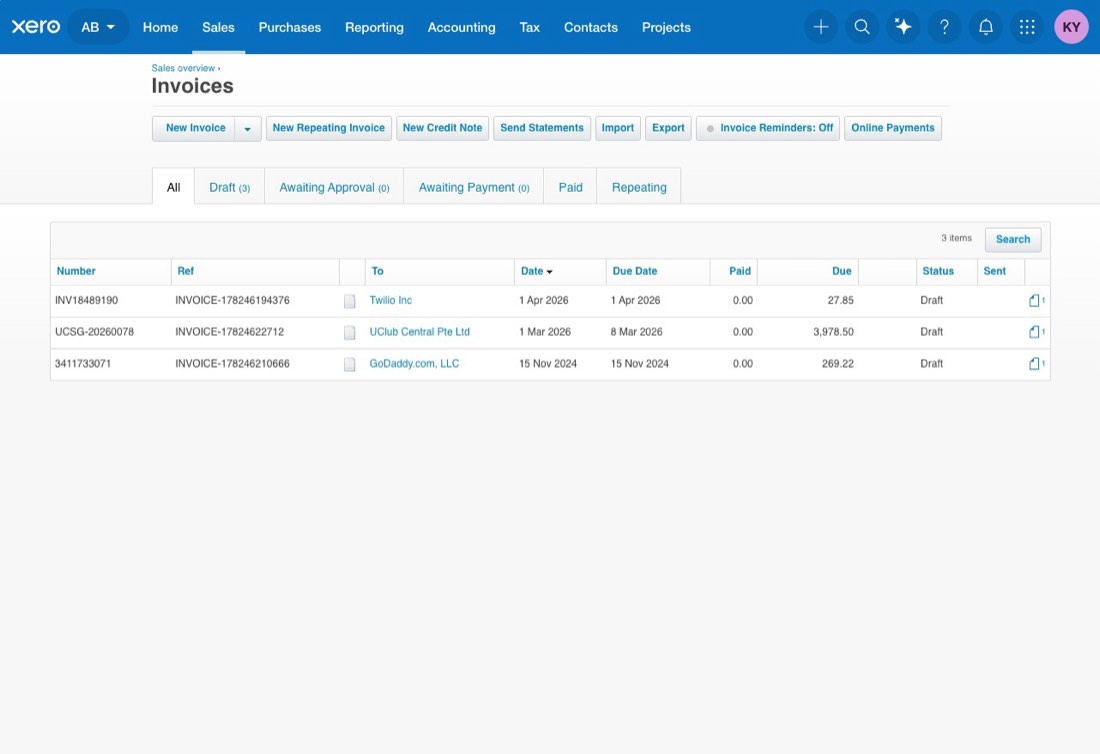
This Knoon template processes invoice files from Google Drive and records them as draft invoices in Xero. Each run fetches one invoice, extracts the invoice data, creates the Xero draft invoice, uploads the original file as an attachment, then moves the source file into either a completed folder or a review folder.
What this template does
- Lists invoice files from a selected Google Drive folder.
- Downloads one invoice per run for extraction and processing.
- Normalizes invoice details before sending them to Xero.
- Creates or finds Xero contacts, accounts, tax rates, and draft invoices.
- Uploads the source invoice file to the Xero invoice attachment.
- Moves successful files to
Done. - Moves blocked, failed, or skipped files to
Need attention. - Starts the next run only when Google Drive returns a
nextPageToken.
Required connections
- Google Drive: connect the Google account that owns or can access the invoice folder.
- Xero: connect the Xero organization where draft invoices should be created.
Setup
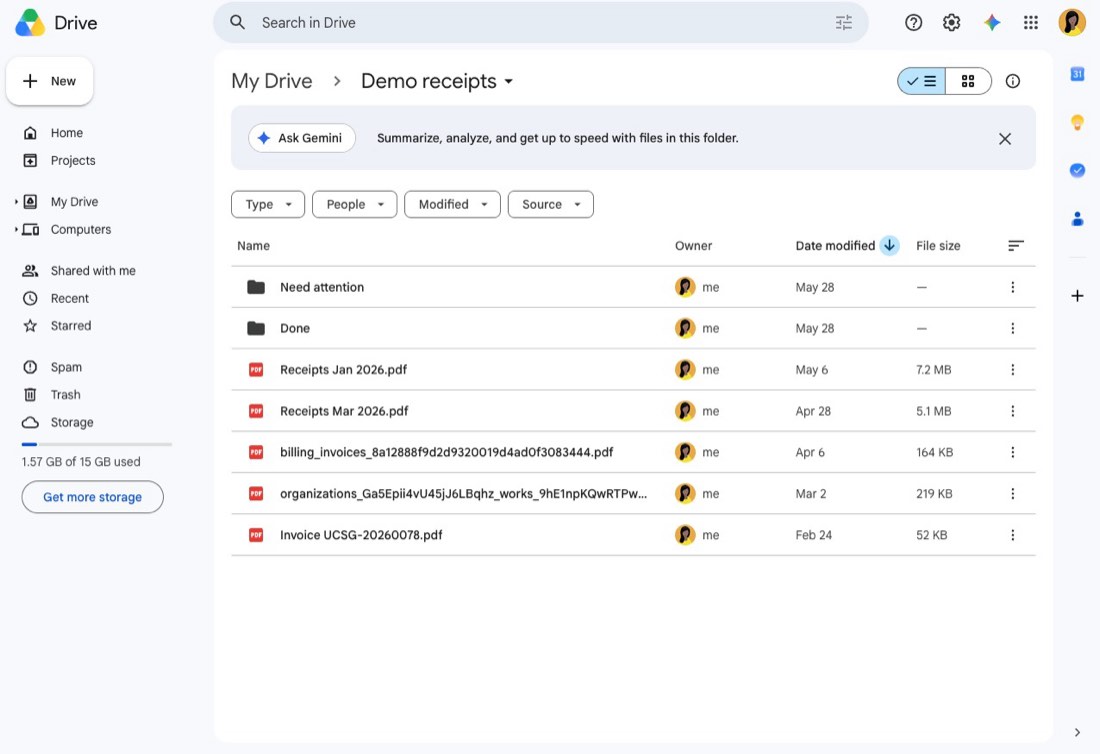
- In Google Drive, prepare a source folder for incoming invoices.
- Inside or near that workflow folder, prepare two destination folders:
Donefor invoices recorded successfully in Xero.Need attentionfor invoices that need manual review.
- During import, select:
- The Google Drive folder containing invoices.
- The destination folder for successfully processed invoices.
- The destination folder for failed or blocked invoices.
- Confirm the Xero account, contact, tax rate, and invoice permissions are available for the connected Xero account.
Screenshots
Google Drive source folder with invoice PDFs and routing folders:

Xero draft invoices created by the workflow:

Notes
- The workflow is intentionally limited to one invoice per run so files can be routed safely and continuation can be controlled through
nextPageToken. - Invoice fields are not guessed. Files with missing or ambiguous invoice data are sent to
Need attention. - The Invoice Processor does not move files directly; the Invoice File Mover handles final routing after processing.
This template deploys automatically to the cloud. No coding, self-hosted n8n setup, or Make.com flows are required. The workflow runs deterministically, so it stays predictable compared with agent-driven tools like Manus, OpenAI, or Tasklet.