AI Batch record bills (Singapore GST) from OneDrive in QuickBooks
Batch Record Bills (Singapore GST) from OneDrive in QuickBooks
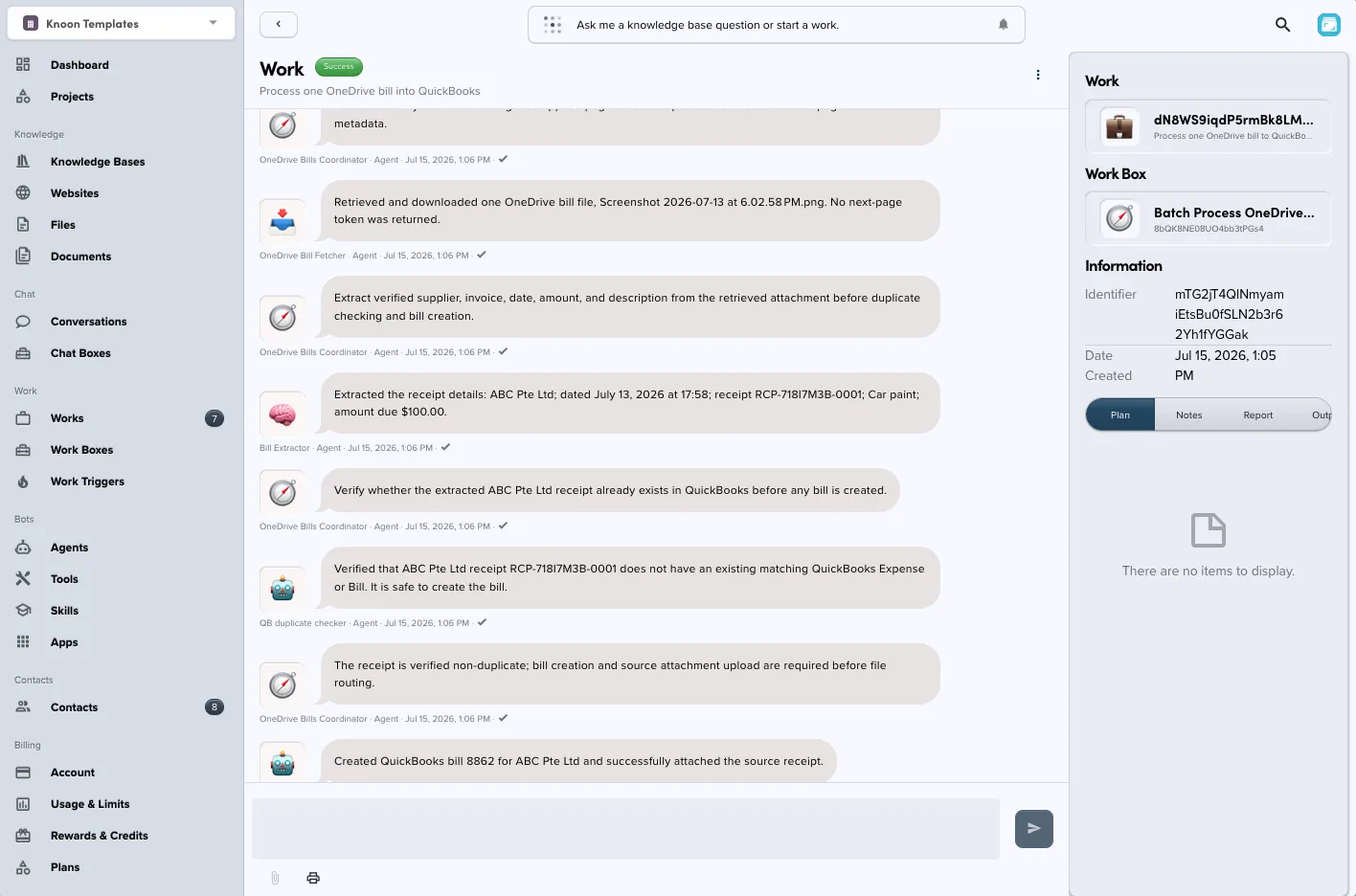
Automatically process supplier bills from OneDrive and record them in QuickBooks Online. Each run handles one file, extracts the bill details, checks for duplicates, finds or creates the vendor, selects an expense account and Singapore GST tax code, creates the bill with its source document attached, and routes the original file according to the result.
What this template does
- Lists the files in a configured OneDrive inbox and downloads one bill.
- Extracts the supplier, invoice number, bill date, amount, description, and other relevant details.
- Checks QuickBooks bills and purchases to avoid recording a duplicate transaction.
- Finds the matching QuickBooks vendor or creates one when needed.
- Selects an appropriate expense account and Singapore GST tax code.
- Creates the bill in QuickBooks Online and attaches the original source file.
- Moves successfully processed files into a year-based folder. Files that cannot be processed are moved to
Need attentionfor review.
The workflow processes one bill per run, making it suitable for scheduled or repeated batch execution.
Requirements
- A Microsoft account with access to the OneDrive folders used for incoming and processed bills
- A QuickBooks Online company configured for Singapore GST
- Permission to read, download, create, and move files in the selected OneDrive location
- Permission to query vendors, accounts, tax codes, purchases, and bills in QuickBooks, and to create bills, vendors, and attachments
Setup
- Import this bundle into Knoon.
- Connect the Microsoft OneDrive and QuickBooks apps when prompted.
- Configure the OneDrive folder selections requested by the imported tools:
- the folder containing unprocessed bills;
- the parent folder for year-based processed-bill folders; and
- the folder for bills requiring human attention.
- Review the available QuickBooks expense accounts and Singapore tax codes before the first production run.
- Add a sample bill to the OneDrive inbox and run Batch Process OneDrive Bills (GST).
- Confirm that the bill, attachment, vendor, account, and tax treatment are correct in QuickBooks before enabling repeated or scheduled runs.
Example result
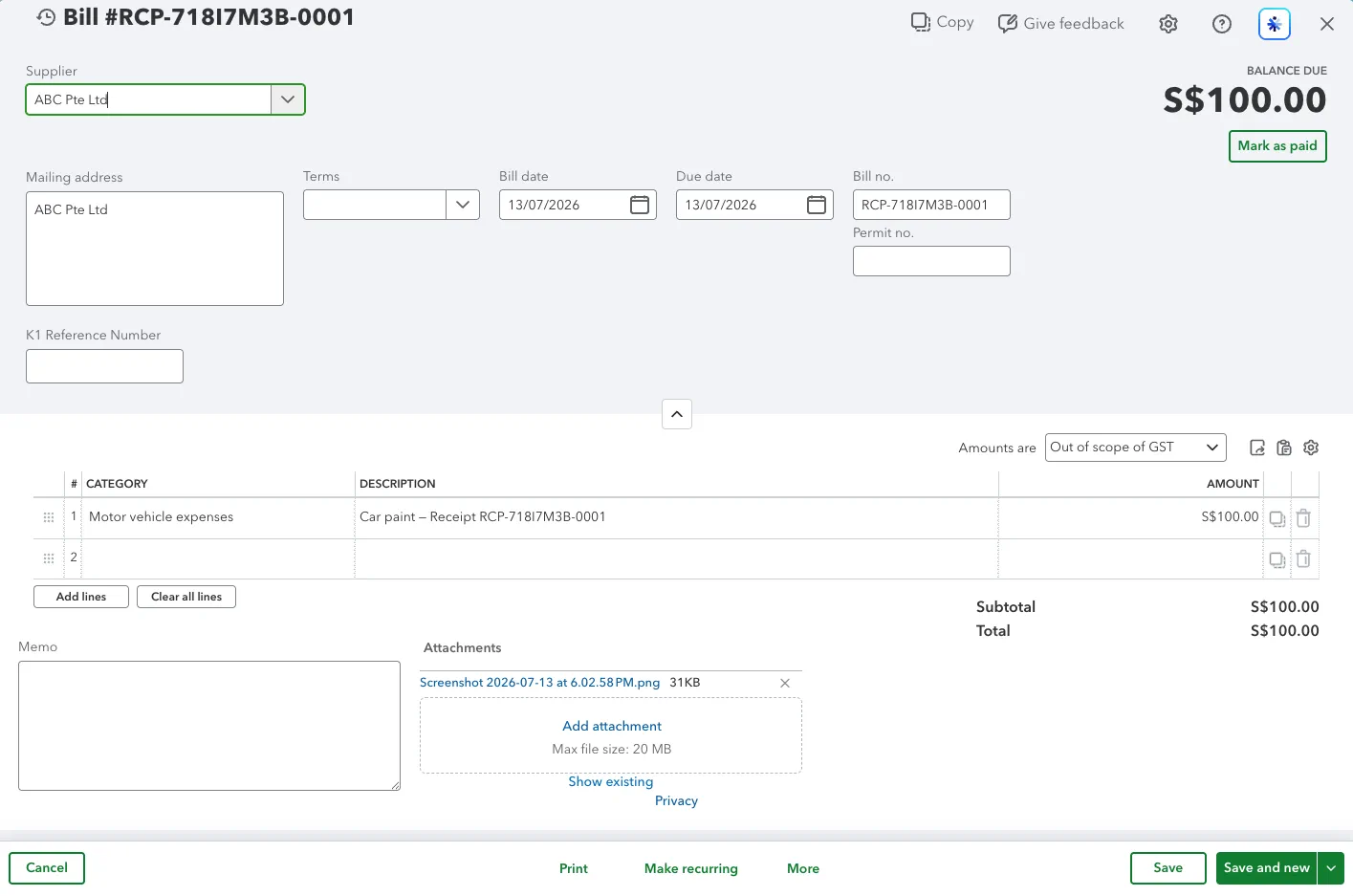
The workflow creates a populated QuickBooks bill and retains the original document as an attachment.
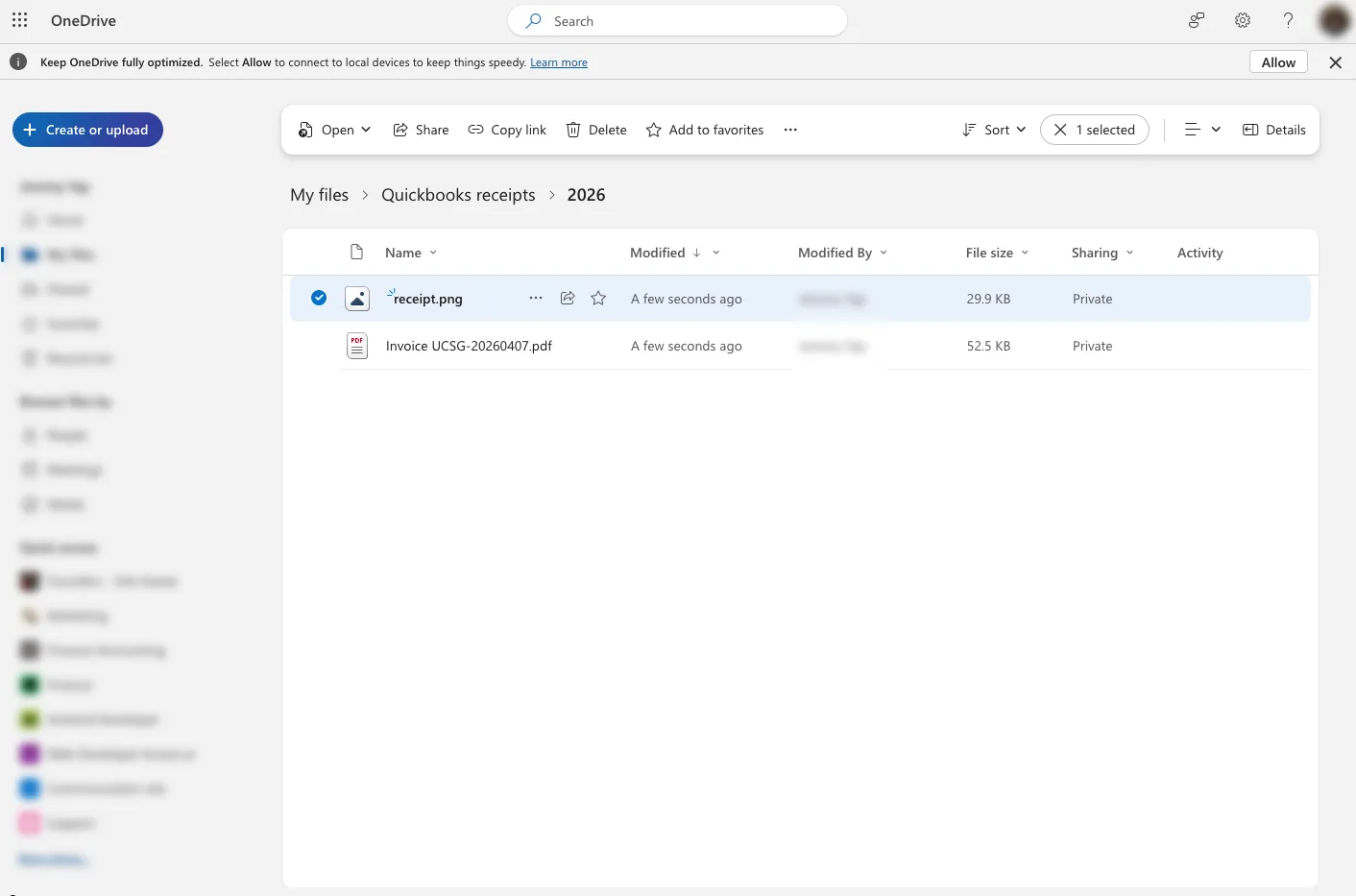
After successful processing, the source file is moved out of the inbox into the appropriate year-based folder in OneDrive.
This template deploys automatically to the cloud. No coding, self-hosted n8n setup, or Make.com flows are required. The workflow runs deterministically, so it stays predictable compared with agent-driven tools like Manus, OpenAI, or Tasklet.